You can create your own website with WordPress, an online website builder, or professional help. In this guide, I will show you the differences between these options, the realistic costs, and the exact steps required to launch a useful website without programming.

Quick summary: I recommend self-hosted WordPress for most businesses, blogs, and projects that need room to grow. Complete beginners can start with Webnode. When you do not have time to learn website building, hiring a professional is usually the most efficient route.
Difficulty: suitable for beginners
Skills required: no coding
You will need: a domain, hosting, content, and a rough design idea
Result: a working foundation for a business, personal, or content website
Why You Need Your Own Website
A website is your own space online and gives you direct control over your presence. It presents your services, builds trust, attracts leads, and provides important information around the clock. Unlike a social media profile, it does not depend entirely on another platform’s rules.
- It is always available. People can review your offer and contact you outside business hours.
- It builds credibility. A professional website, custom domain, and branded email look more trustworthy.
- It explains products and services. It answers common questions and saves time for both sides.
- It can attract search traffic. Helpful content can bring visitors from Google and AI search tools.
- It is measurable. You can track traffic, popular pages, and sources of enquiries.
- It strengthens your brand. You control the design, content, and communication.
Three Ways to Create a Website
The main options are WordPress, an online website builder, and a professionally built website. The right choice depends on budget, time, technical confidence, and future growth. For most long-term projects, WordPress offers the strongest balance of ownership and flexibility.
| Option | Best for | Main advantage | Limitation |
|---|---|---|---|
| WordPress | Businesses, blogs, publications, and growing projects | High flexibility and ownership | Requires updates and basic maintenance |
| Webnode | Beginners and simple brochure websites | Very easy to launch | Less flexibility for advanced changes |
| Professional website | Businesses without time or with complex requirements | Professional result without a learning curve | Higher initial investment |
WordPress
WordPress is the best choice when you want control and the ability to expand your site later. The content management system itself is free, but you need a domain and web hosting. Themes, blocks, and plugins let you add functions without coding.
I recommend WordPress for business websites, blogs, portfolios, membership sites, and projects that may later need ecommerce, multiple languages, or advanced SEO.
I explain the difference between WordPress.com and self-hosted WordPress in my WordPress.org vs WordPress.com guide.
Webnode
Webnode suits users who want to publish a simple website as quickly as possible. You can start for free, while AI tools can help generate an initial structure, text, and design. A custom domain and additional features are available on paid plans.
Read my detailed Webnode review for more information.
A Professionally Built Website
Professional website development makes sense when your time is more valuable than the time needed to learn. A specialist can plan the information architecture, design, technical setup, and optimisation. Agree on scope, ownership of the domain, administrator access, and ongoing maintenance before work begins.
Free Websites: When Are They Enough?
A free website may be enough to test an idea, complete a school project, or publish a basic personal page. A business website will usually encounter restrictions around custom domains, provider branding, storage, analytics, and advanced features. Treat a free plan as a trial rather than a permanent business solution.
How Much Does It Cost to Create a Website?
For a self-built WordPress website, the essential costs are a domain and hosting. A theme, visual builder, and plugins may be free or paid. Always compare the introductory price with the renewal price and check the full contract term.
| Item | Typical cost | Notes |
|---|---|---|
| Domain name | Depends on the extension and registrar | Pay close attention to renewal pricing |
| Hostinger Premium | $2.99/month on a 48-month term | Renews at $10.99/month; 3 websites and a domain free for 1 year |
| WordPress | $0 | Open-source software; domain and hosting still cost money |
| Theme | $0 or a licence fee | A free theme is often enough for a first website |
| Page builder and plugins | Optional | Buy paid tools only when you have a clear need |
| Professional development | Custom quote | Depends on scope, design, content, and functionality |
Prices checked on July 31, 2026: Providers can change them at any time. Hostinger lists these global prices without VAT. Before ordering, check the full term, total upfront charge, renewal price, and applicable taxes.
Tip: You can find current promotions and coupons in the deals section.
What You Need to Build a Website
You need a domain, hosting or an online platform, core content, and a clear goal. The technical setup can be quick, but a good website also requires structure, copy, images, design, and testing.
- Domain – the website address, such as wproom.com.
- Hosting – the service that stores and runs the website.
- Platform – for example, WordPress or Webnode.
- Content – copy, photos, logo, and contact details.
- Structure – home, services, about, contact, and other important pages.
How to Choose a Domain
A good domain is short, memorable, and easy to understand when spoken aloud. A .com domain is a natural choice for a global project, although a trusted local extension may be better for a country-specific audience. Avoid long names, confusing numbers, and unnecessary hyphens.
- Use your company or brand name.
- Choose a short and unambiguous address.
- Check trademarks and similarly named businesses.
- Verify matching social media usernames.
- Plan professional email addresses on the domain.
See my guide to choosing a domain name for more tips.
How to Choose Web Hosting
Choose hosting based on reliability, speed, support, backups, and ease of management. A first small WordPress website does not need the most expensive plan. Current server technology, SSL, simple WordPress installation, and room to upgrade matter more.
In this guide, I use Hostinger. It provides managed WordPress features, SSL, backups, AI tools, and global data centres.
I compare more options in my guide to the best WordPress hosting.
How to Create a WordPress Website Step by Step
The process consists of ordering a domain and hosting, installing WordPress, and creating the essential pages. Exact button names may change over time, but the underlying steps remain the same.
1. Order a Domain and Hosting
Open the WordPress hosting offer, choose a plan based on the number of websites, and add your domain. Before paying, check the billing term, renewal price, contact details, and domain spelling.
- Open Hostinger.
- Compare websites, storage, backups, and email accounts.
- Add a new domain or use one you already own.
- Review the full upfront price and renewal cost.
- Complete the order and store your login details securely.
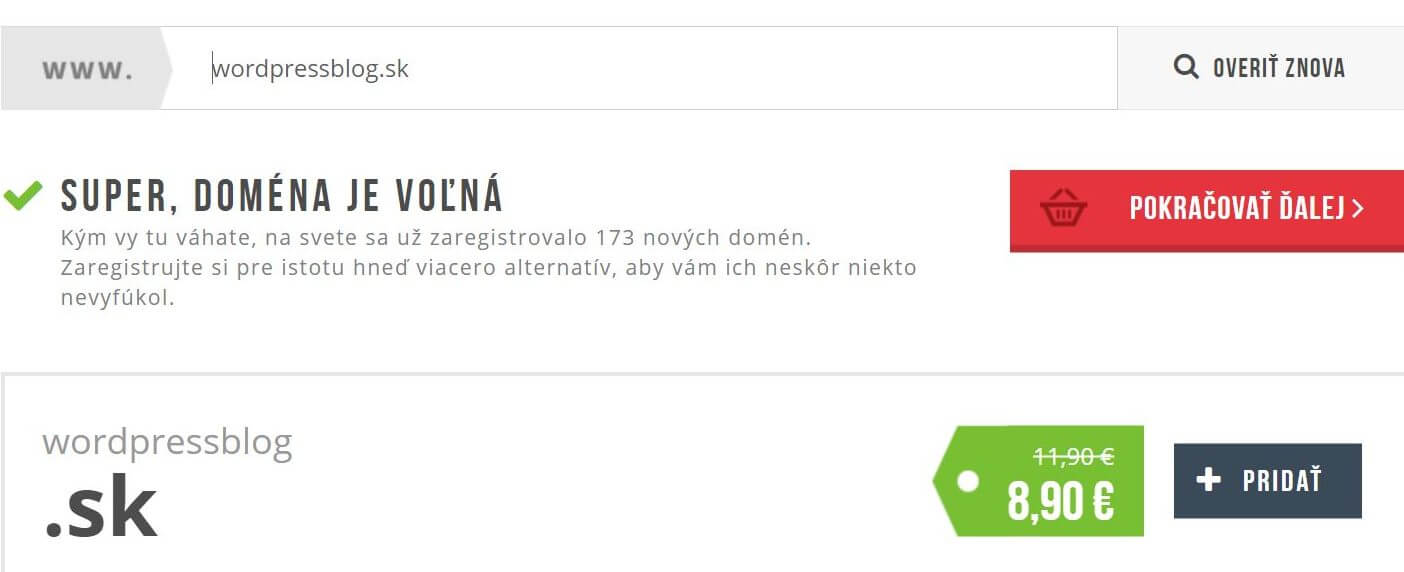
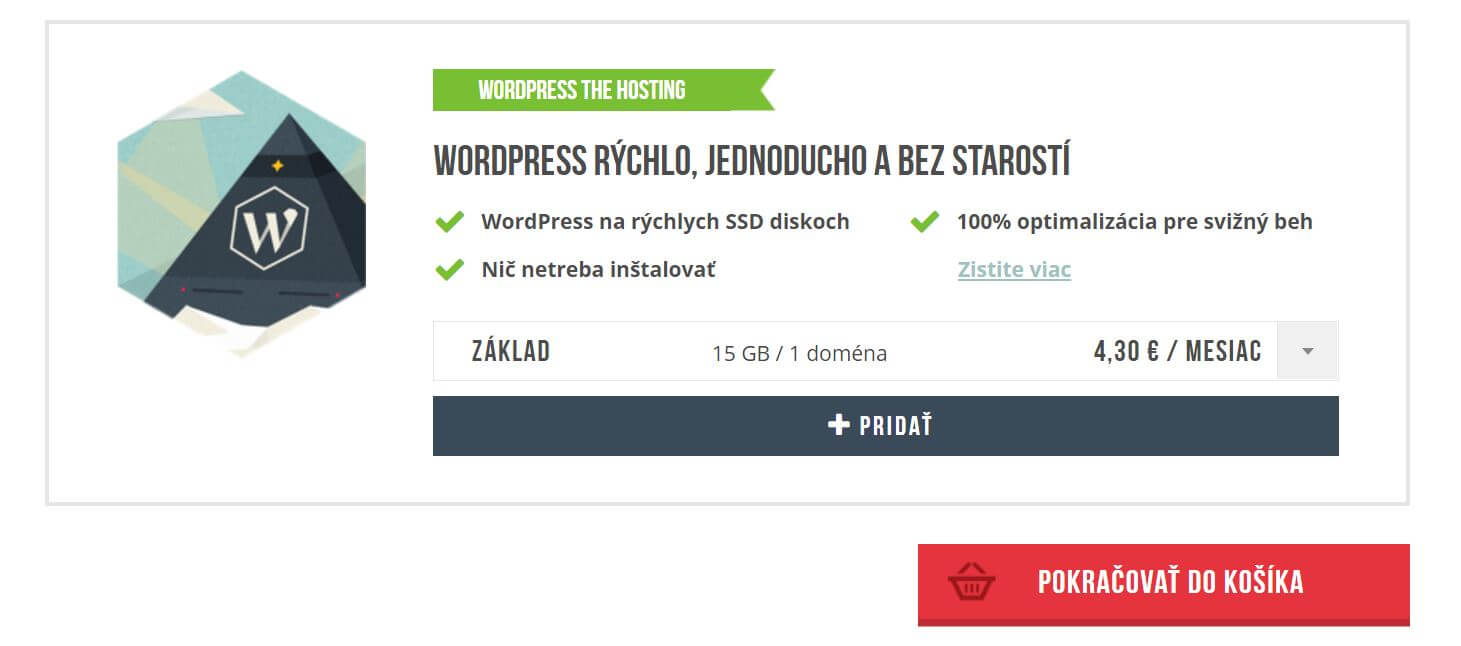
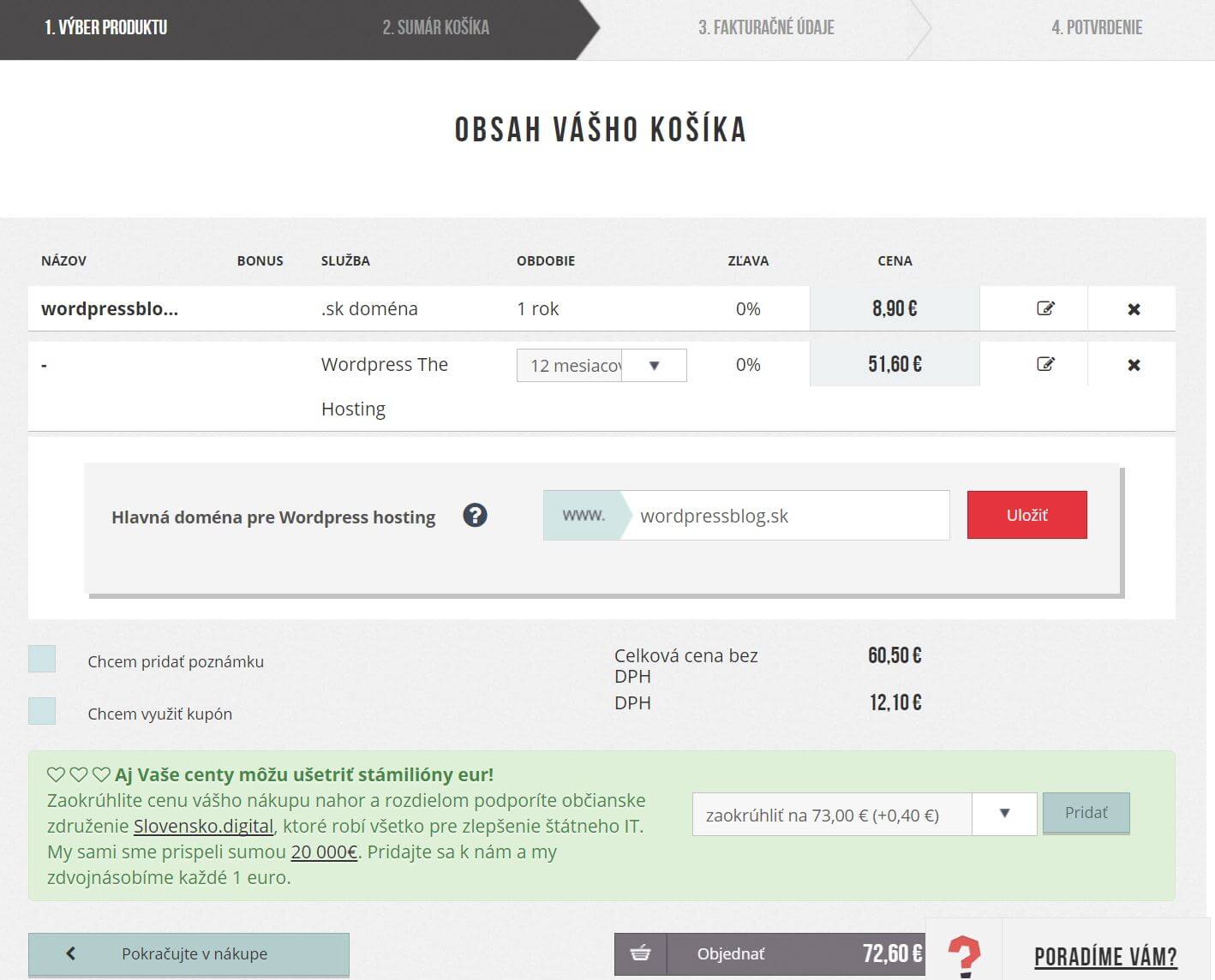
The following images show the older Websupport ordering interface retained from the original guide. They are included as historical orientation only. Follow the current interface and information shown by your selected provider.




2. Install WordPress
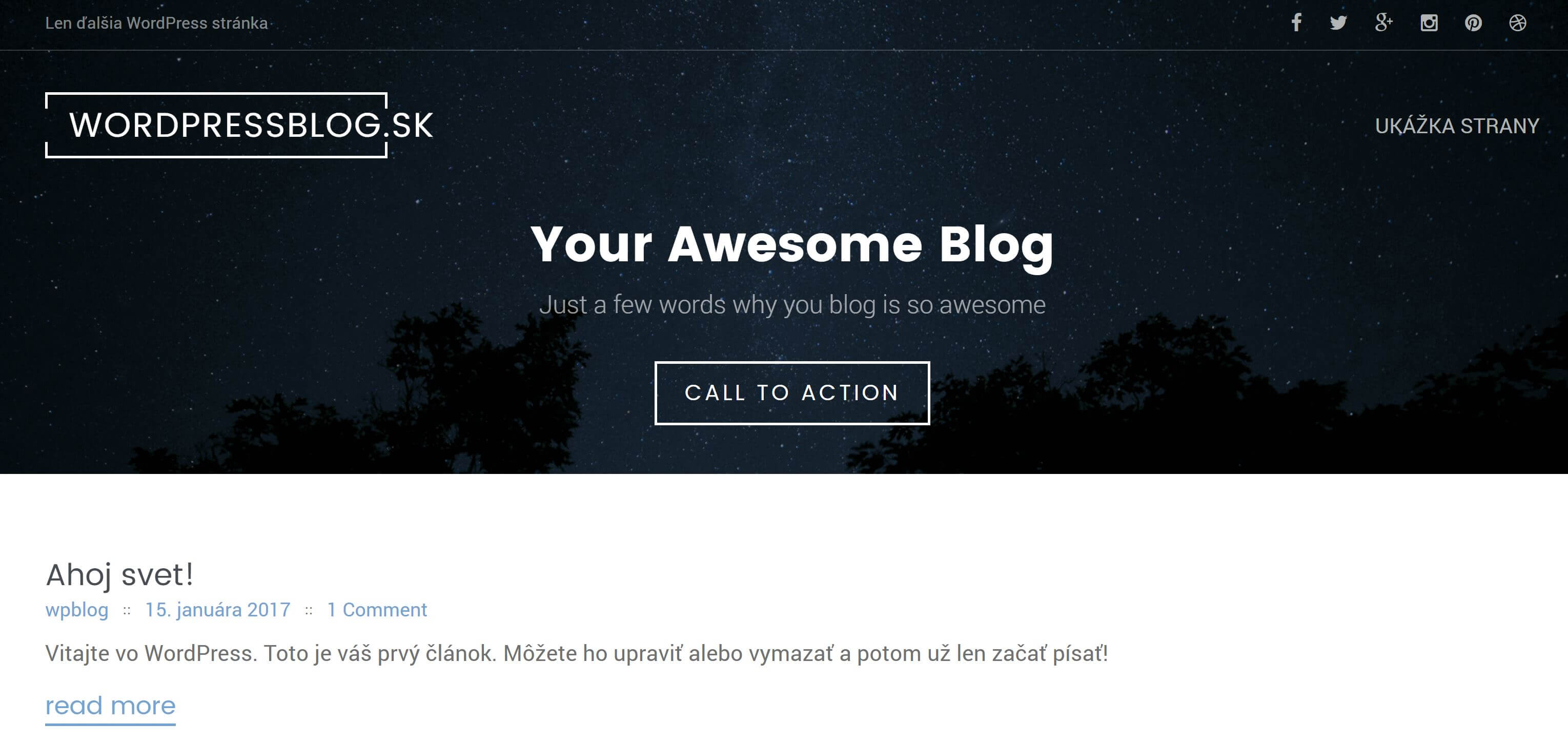
Managed hosting lets you install WordPress from the control panel without manually uploading files. Select the domain, enter the website name, create an administrator account, and use a strong password. Do not use “admin” as your username.
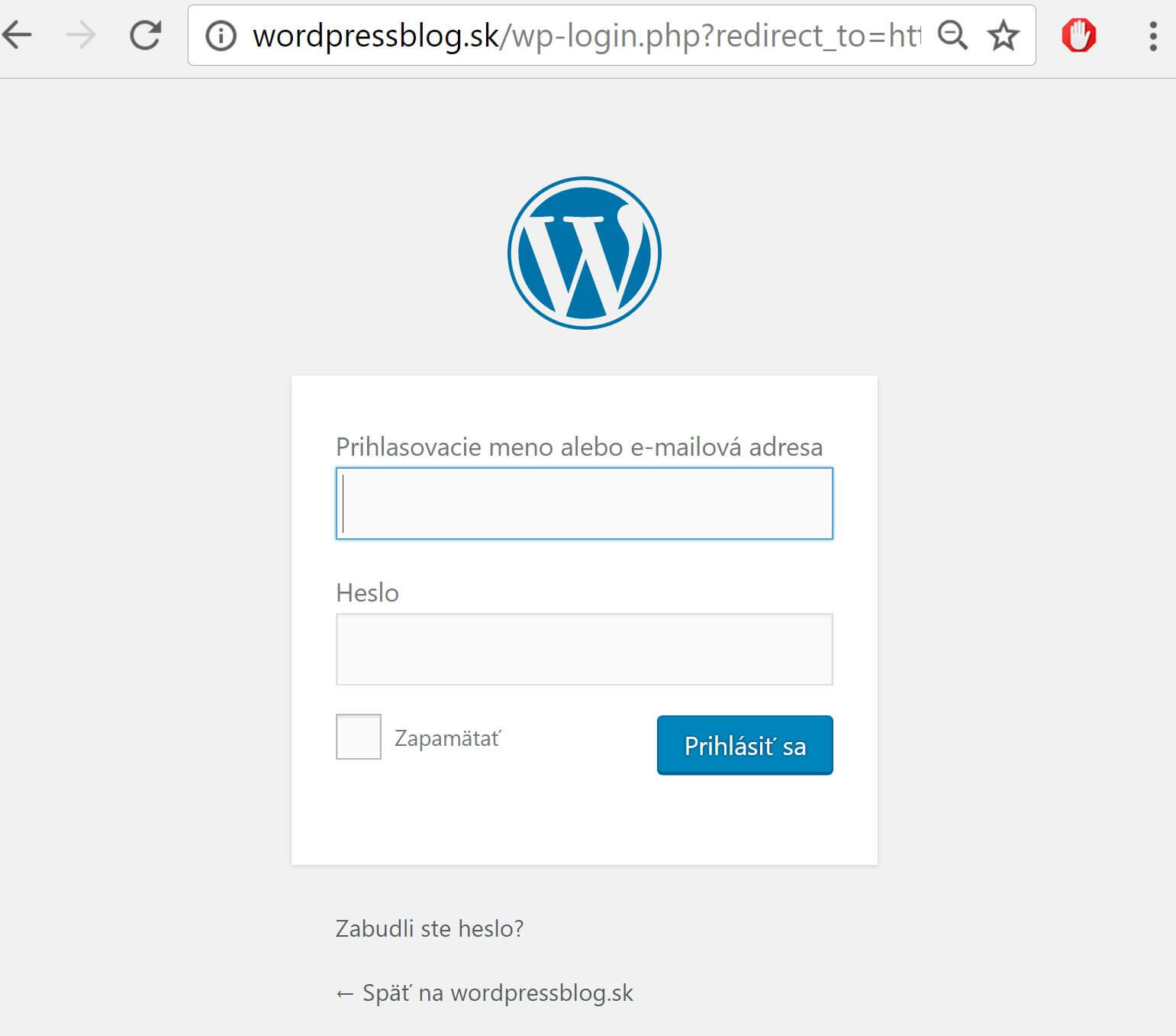
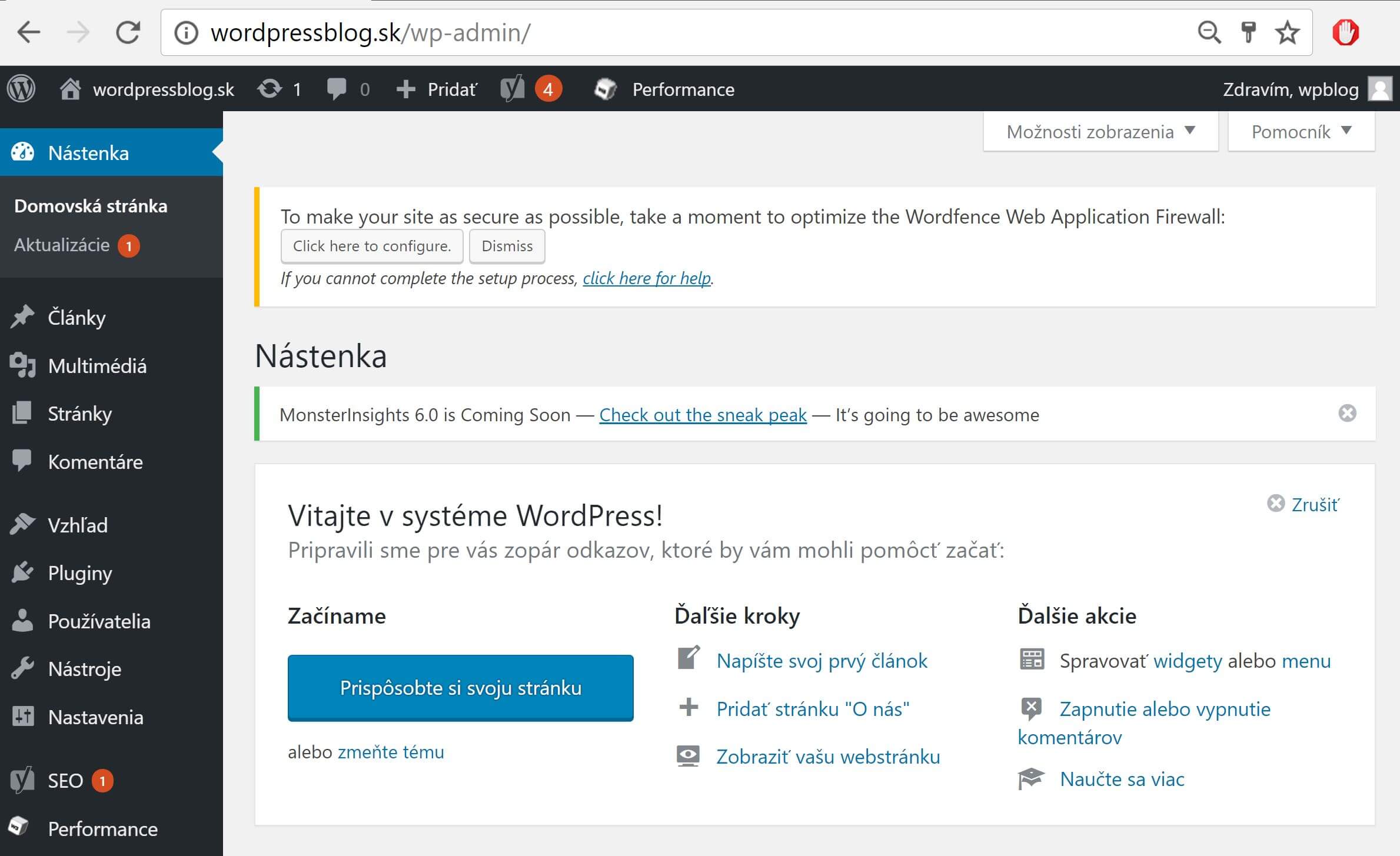
3. Log In to the Dashboard
You can normally reach the WordPress dashboard by adding /wp-admin/ to your domain. After the first login, check the site title, administrator email, language, time zone, and permalink structure.
https://yourdomain.com/wp-admin/
4. Configure the Basic Settings
Set the site title, description, language, time zone, and URLs before working on the design. Confirm that HTTPS works. You may block search engines during development, but remember to remove that block before launch.
- Settings → General: title, tagline, email, language, and time zone.
- Settings → Permalinks: a readable URL structure.
- Settings → Reading: a static home page.
- Users: review administrators and remove unused accounts.
5. Choose a Theme
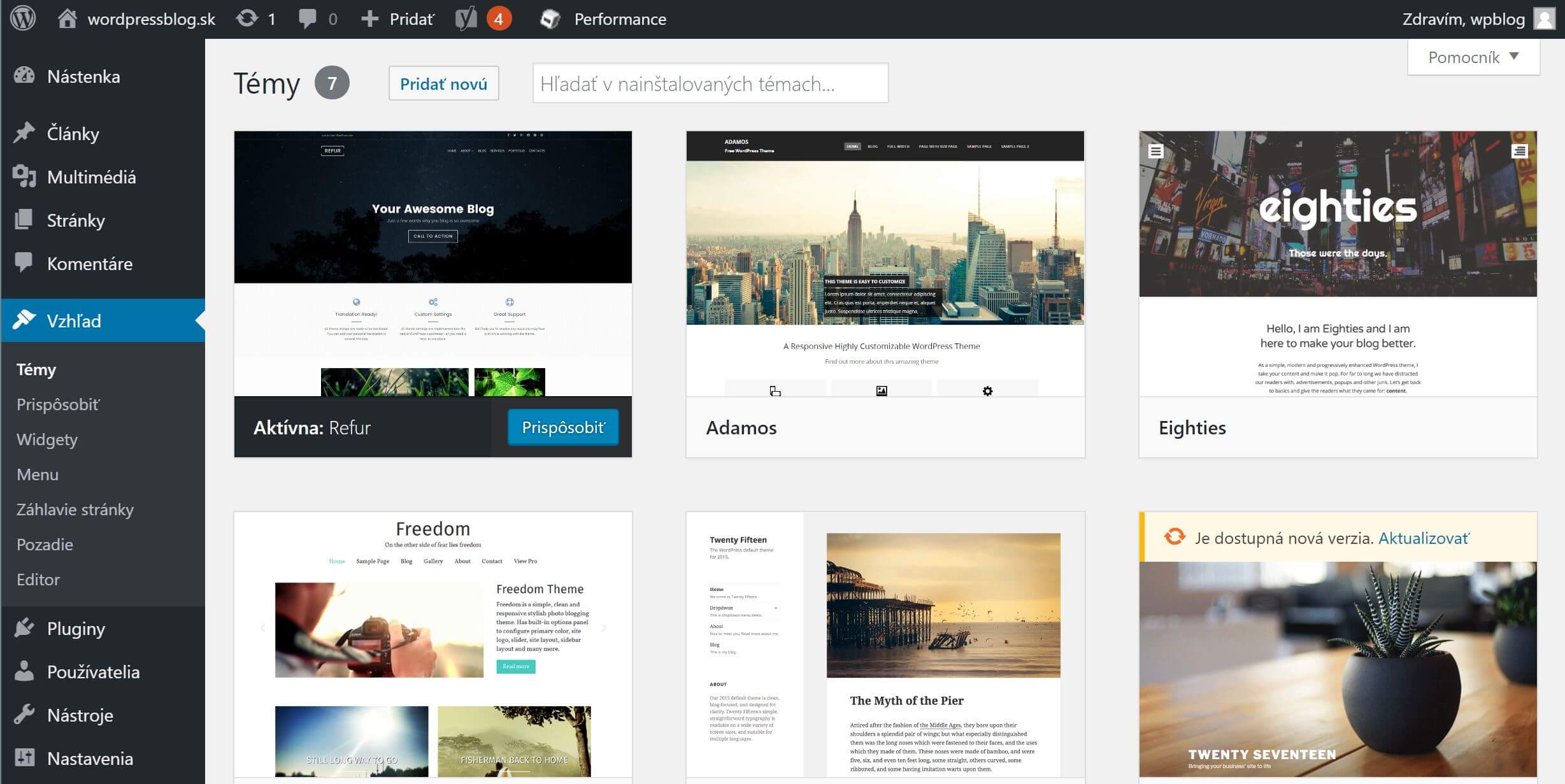
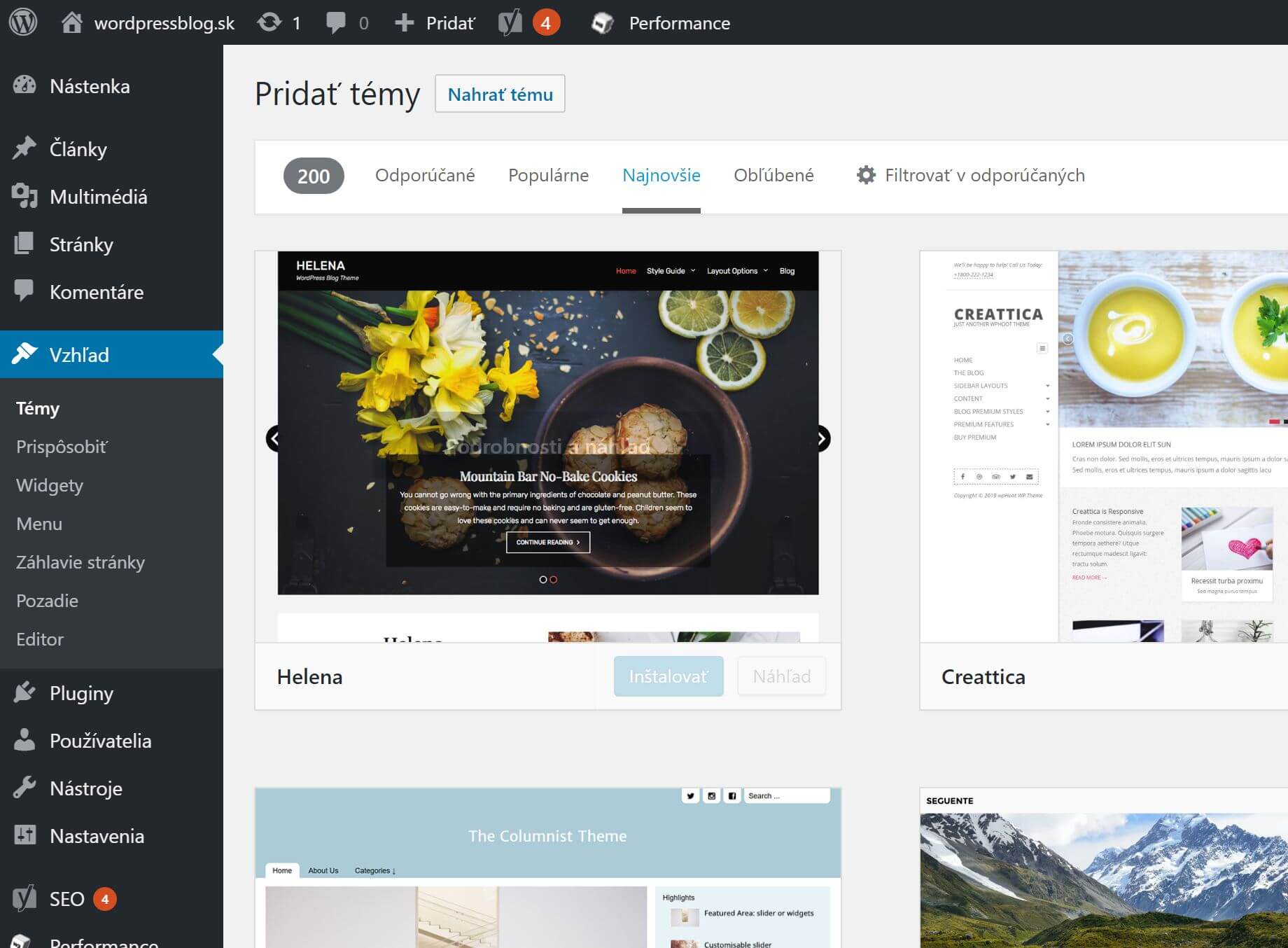
A theme controls the basic design, layout, and customisation options. Choose a lightweight, regularly updated, mobile-friendly theme. The official directory contains thousands of free options.
Install one through Appearance → Themes → Add New.

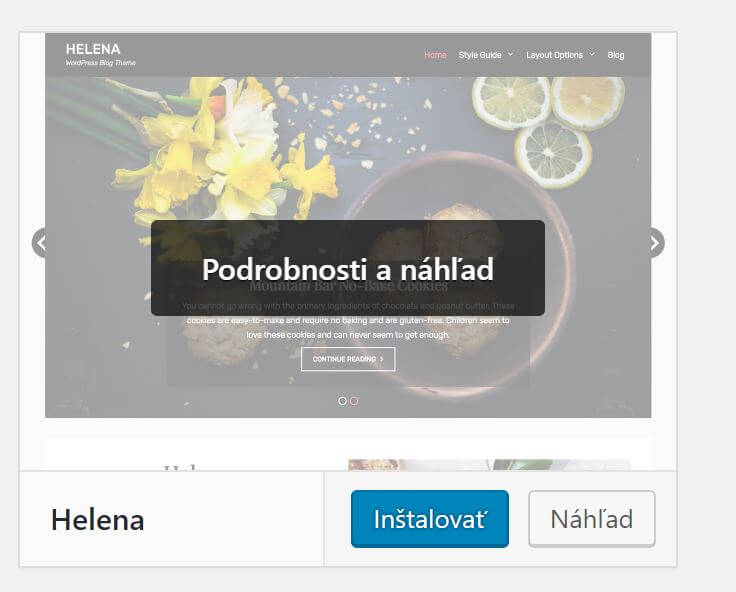
See my comparison of the best WordPress themes.
6. Edit the Design in the Site Editor or Theme Customiser
The editing method depends on your active theme. Modern block themes use Appearance → Editor. Classic themes usually use Appearance → Customise or their own settings panel.
Elementor is useful when you need more visual control. Its AI tools can help with text, images, and layouts, but you should always review the generated output.
7. Create the Essential Pages
A business website needs a clear home page, offer, company introduction, and contact page. Add testimonials, legal pages, and a blog when they support your goals.
- Home – what you offer, who it is for, and why people should choose you.
- Services or products – a specific explanation of the offer.
- About – experience, credibility, and company story.
- Contact – phone, email, address, and form.
- Testimonials or portfolio – proof of work and customer experience.
- Legal pages – appropriate to your location, site type, and data processing.
8. Create the Navigation
Navigation should move visitors quickly to the most important pages. Do not overcrowd the main menu, and use simple labels. Less important legal links usually belong in the footer.
9. Add a Contact Form and Necessary Plugins
Plugins add features that WordPress or your theme does not provide. Install only what you need, such as a form, SEO, backups, security, caching, or consent management.
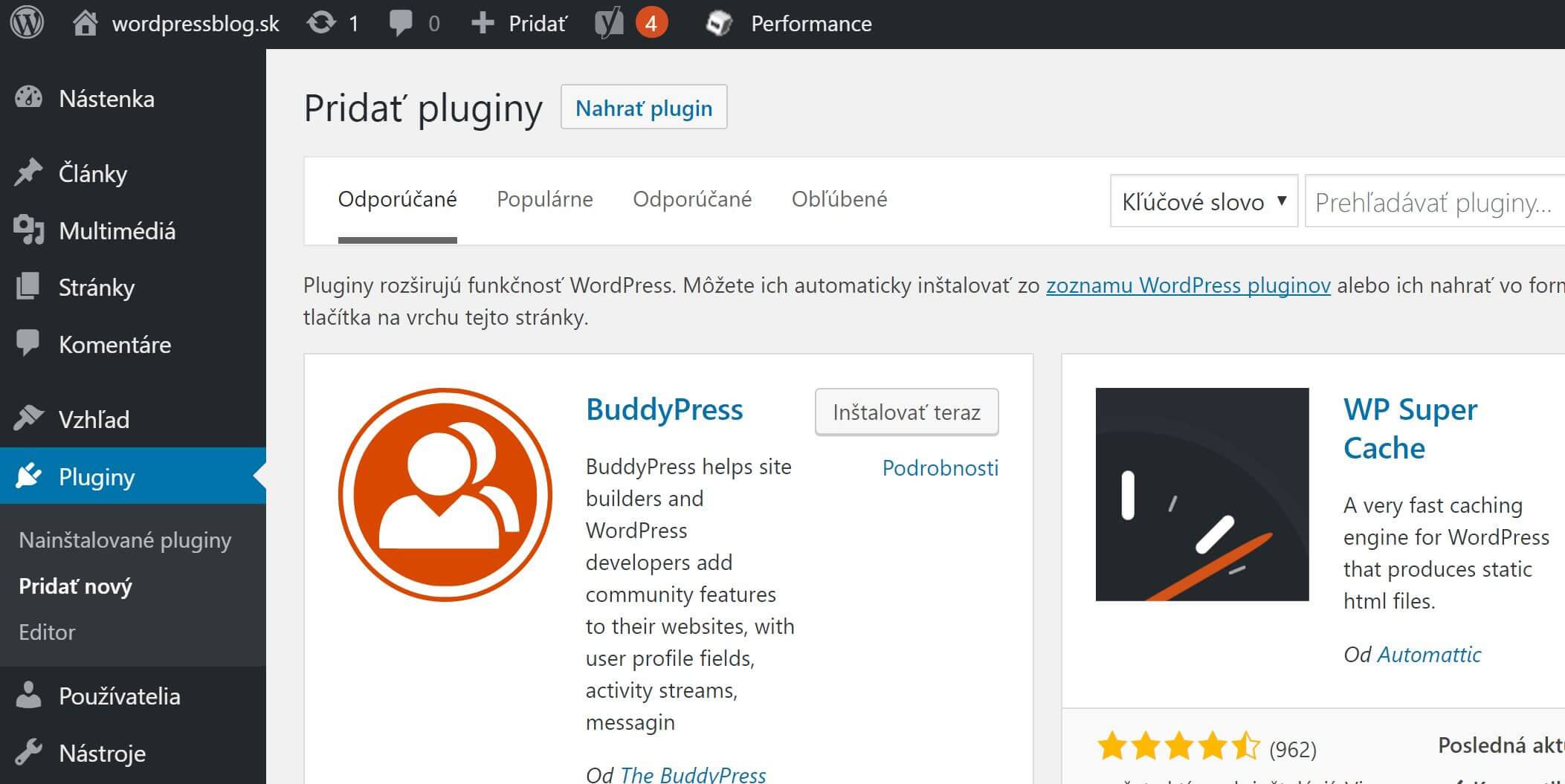
10. Publish Your First Post if You Need a Blog
Create blog posts through Posts → Add New. Posts work well for tutorials, updates, and content designed to attract search traffic.
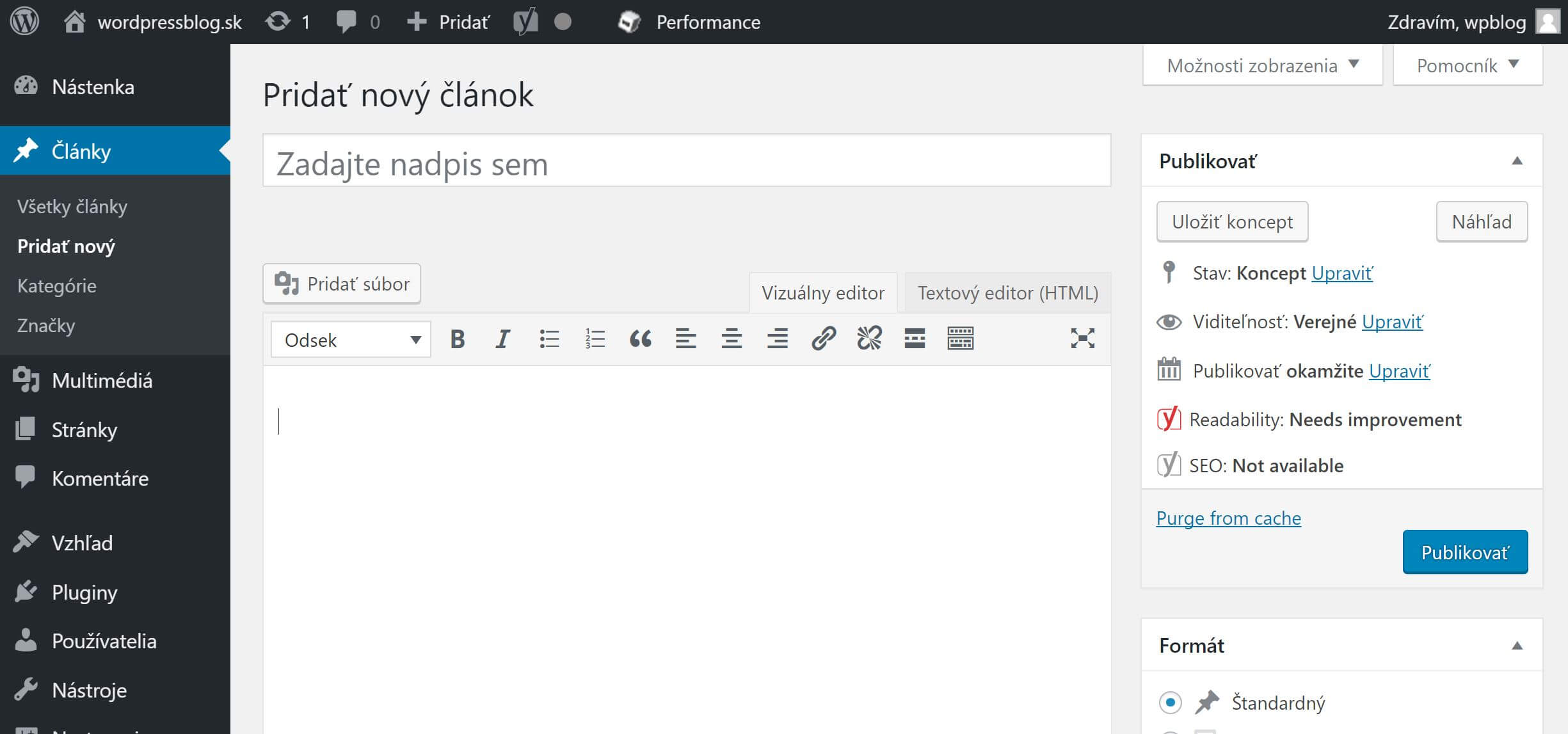
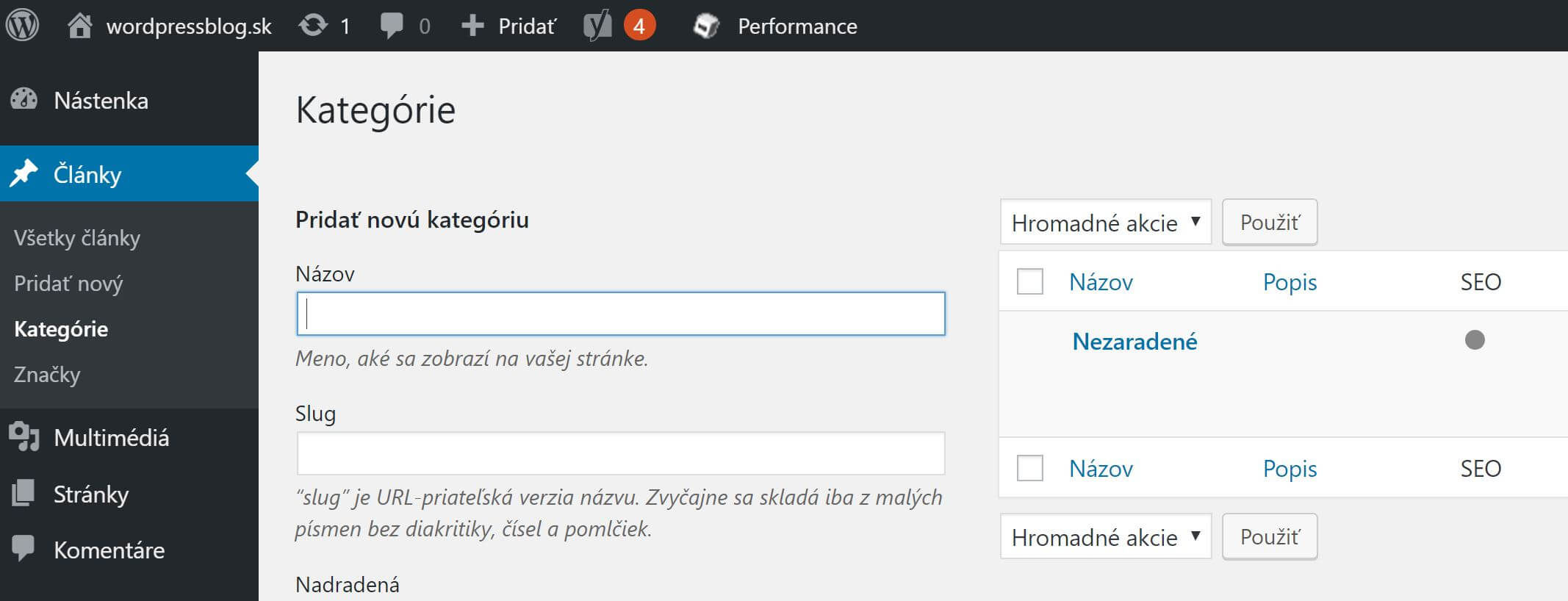
For more detail, read my WordPress beginner guide.
What to Set Up Before Launch
Before publishing, check mobile display, forms, HTTPS, backups, SEO, and every link. An installed WordPress site is not yet a finished website. The final review often determines whether it feels professional and trustworthy.
Backups and Security
Automatic backups and regular updates are the foundation of secure operation. Update WordPress, themes, and plugins, remove unused tools, and use unique passwords with two-factor authentication.
Website Speed
Speed affects user experience and search visibility. Start with good hosting, a lightweight theme, optimised images, and a sensible number of plugins.
Basic SEO
Every important page needs a clear heading, readable URL, useful content, and a compelling SEO title. Add descriptive image alt text, connect related pages with internal links, and set up Google Search Console after launch.
Pre-Launch Checklist
- The website works on mobile and desktop.
- The logo, favicon, and site name are correct.
- Every link and button works.
- The contact form sends a message.
- HTTPS is active.
- No demo text or stock placeholders remain.
- Contact details are consistent.
- Automatic backups work.
- Search engines are not accidentally blocked.
- Analytics and Search Console are configured.
Common Website-Building Mistakes
The most common mistake is focusing on design before the goal, content, and structure. A beautiful website with an unclear offer will not convert well. Too many plugins, animations, and large images also reduce quality and speed.
- An unclear offer on the home page.
- Too many menu items.
- No clear contact or purchase call to action.
- Unoptimised images.
- Poor mobile layout.
- Outdated themes and plugins.
- No backups.
- Several plugins performing the same task.
Frequently Asked Questions
Can I create a website for free?
Yes, you can build a simple site with a free builder or free hosting. Free options usually limit domains, features, or branding. For a business website, I recommend a custom domain and a paid plan.
How much does a website cost?
With self-hosted WordPress, you mainly pay for a domain and hosting. Premium themes, plugins, photography, copywriting, and professional help create additional costs.
Do I need a developer?
You do not need a developer for a typical business or personal website. A specialist becomes useful for custom functions, integrations, and complex ecommerce.
Is WordPress or Webnode better?
WordPress is more flexible, while Webnode is easier for a quick first launch. I recommend WordPress for a project that needs to grow.
How long does it take to build a website?
The technical foundation can be quick, but a good website requires time for content, images, structure, design, and testing.
Do I need both a domain and hosting?
You need both for self-hosted WordPress. The domain is the address, while hosting stores and runs the site.
Can I edit the website myself later?
Yes. WordPress and online builders let you change content without coding.
Which pages should a business website include?
The essentials are home, services or products, about, and contact. Add testimonials, pricing, FAQs, a blog, and legal pages when relevant.
How to Create a Website: Final Verdict
For a long-term business or content project, I recommend WordPress on your own domain. It provides the greatest control and room to expand. Webnode works well for a simple brochure site, while professional development is best when you lack time or need a custom solution.

